
Authenticator App
Starnest JSCProductivity
4.1830.00 Reviews
- Version
- 92.0
- Installs
- 10.00M
- Age Rating
- Everyone
Screenshots
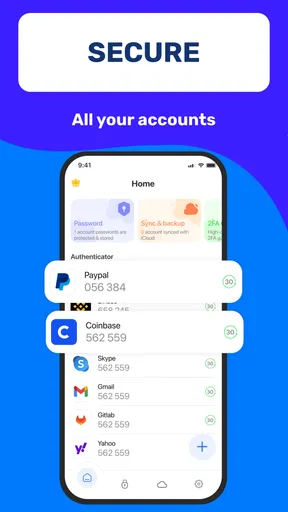
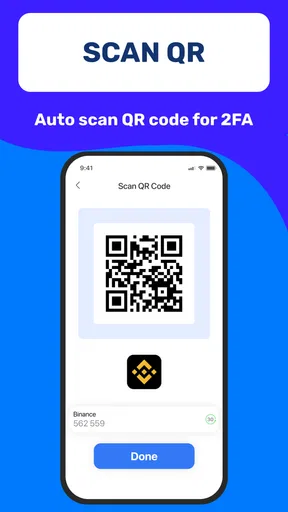
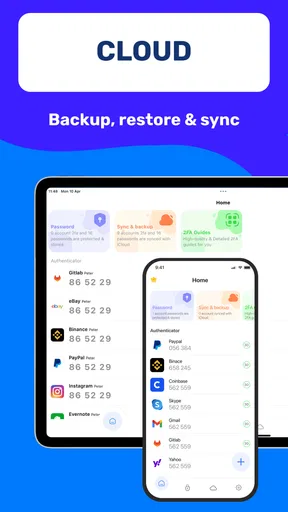
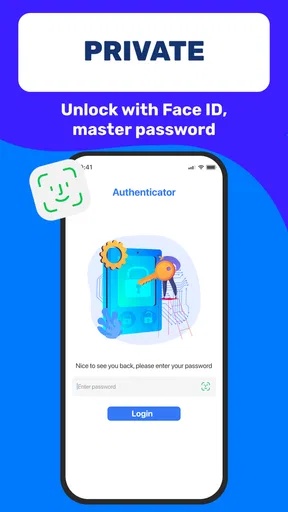
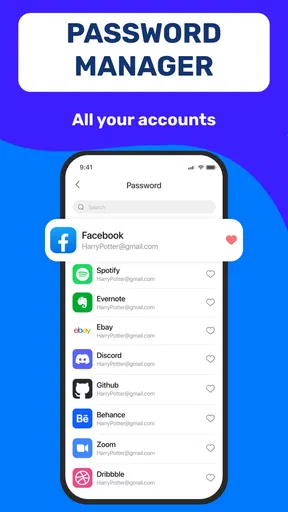
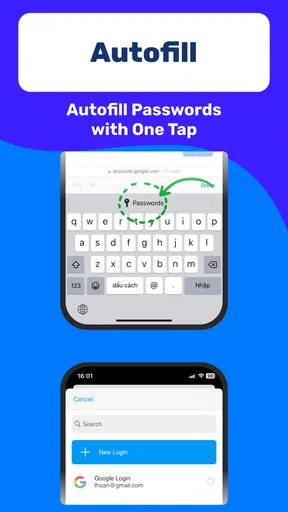
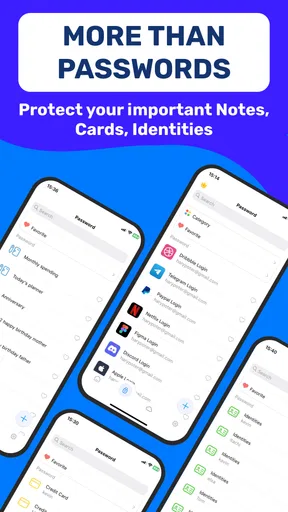
Our Review of Authenticator App
 Analysis by Appyee
I treat an authenticator as a small tool with an important job: it should help me get through a sign-in without making account security feel like another project to manage. Authenticator App is aimed at that everyday role, bringing two-factor codes together with password-management tools. That combination may suit someone who wants a single place to start managing logins, though I’d still think carefully about how I want to protect and recover my account access.
A practical routine for everyday sign-ins
My preferred routine is to set up two-factor authentication when I’m already signed in to an account, rather than waiting until I’m in a hurry or locked out. I enable the extra verification on the service itself, add it to the authenticator, and then test a sign-in while I still have access to the account’s security settings. That last check matters: a code appearing in an app is useful only if I know it works with the account I intended to protect.
On a normal day, the app is most valuable at the moment a service asks for a second step. I open it, identify the right account entry, and use the current code before it changes. The job is deliberately narrow. It doesn’t replace a strong, unique password, and it can’t fix weak recovery arrangements on a website; it gives a compatible sign-in an additional check.
Build recovery into the setup
Before moving authentication for an important account, I make sure I understand that service’s recovery options. Some services provide backup codes or another recovery method during setup. I keep those details somewhere separate and appropriately protected, rather than assuming the phone will always be available. A lost, damaged, or unavailable phone can turn a convenient security step into a stressful problem if recovery was left until later.
I also avoid removing an old authenticator or device until I’ve successfully tested the new setup. A careful transfer is less exciting than a quick one, but it reduces the chance of losing access because one scan was missed or a code was attached to the wrong account. For particularly important logins, I’d rather take an extra minute to verify than discover the mistake during a work deadline.
Who will appreciate this approach
This app is a sensible fit for people who regularly sign in to several services and want a dedicated place for verification codes. It may be especially useful if you’re adding two-factor protection gradually: start with your primary email account, then move on to financial, work, or social accounts as appropriate. Securing the email account first is practical because it often plays a role in resetting other passwords.
It’s less suitable for someone who expects an authenticator to automatically solve every part of account security. If you need a managed team system, a carefully controlled shared vault, or a workflow tied to a particular organization, check that the app’s available tools match those requirements before relying on it. People who prefer to keep authentication separate from password storage may also be happier with dedicated apps for each job.
How it fits among familiar alternatives
Compared with relying only on text-message codes, an authenticator app can make verification less dependent on receiving a message at that moment. Compared with a built-in password manager, a dedicated authenticator keeps the second-step code workflow in focus, while this app’s password-manager offering may appeal if you’d rather keep related tools together. Those are different trade-offs, not a universal ranking: convenience, recovery choices, and the services you use should guide the decision.
Starnest JSC develops the app, which sits in the productivity space rather than trying to turn security into a complicated technical hobby. It’s free to download, has an Everyone age rating, and includes in-app purchases ranging from $8.99 to $49.99 per item. The app has a 4.1 average from around 87,000 ratings and more than 10 million installs, so it has attracted a broad audience; those figures are context, not a substitute for checking whether its particular workflow suits you.
Setting Up and Getting Started
The first thing you'll notice about the Authenticator App is its straightforward setup process. I was up and running in minutes, with the app guiding me through each step without any hiccups. After downloading the app from your preferred app store, you're prompted to link your accounts. This is as easy as scanning a QR code or entering a setup key. I found this part refreshingly simple, especially compared to some other apps that seem to require a manual to decipher.
Once you've linked your accounts, the app generates a 6-digit code every 30 seconds. This code is your golden ticket to secure login. It’s a nifty little system that keeps my accounts safe from prying eyes and potential hackers.
User Interface and Experience
The user interface is clean and intuitive. I'm not a fan of cluttered screens, and thankfully, this app keeps it minimal. Everything is where you'd expect it to be, and there's no unnecessary stuff to wade through. The app's design is such that even my less tech-savvy friends could navigate it without breaking a sweat.
What really stood out to me was the speed. The app is lightning fast, with codes updating instantly. There’s no lag, which is crucial when you're in a hurry and need to log in quickly.
Security Features
Now, let's talk security. After all, that's why we're here, right? The app employs two-factor authentication (2FA), which adds an extra layer of security. Even if someone gets hold of your password, they would still need the code generated by the app to access your account. This made me feel a lot more at ease, knowing my data had that added protection.
Moreover, the app doesn’t store your passwords; instead, it generates temporary codes. This means even if your phone gets compromised, the app doesn’t give away your passwords. It's a reassuring feature that emphasizes the app's commitment to security.
Cross-Platform Compatibility
I use a mix of devices—an Android phone, an iPad, and a Windows PC, to be precise. The Authenticator App plays nicely with all of them. It's available on both Android and iOS, and it syncs seamlessly across devices. This cross-platform compatibility is a huge plus for people like me who are constantly switching between gadgets throughout the day.
Additional Features
I was pleasantly surprised by the app’s backup feature. You can back up your account information to the cloud, making it easy to recover your data if you switch devices or lose your phone. This is a lifesaver for those of us who are prone to misplacing things.
The app also allows you to organize your accounts in a way that suits you. You can label each account, making it easier to find the one you need at a glance. For someone who manages a lot of accounts, this organization feature is a real time-saver.
Settings and habits that make the difference
My most useful habit is checking the account label as well as the code. Similar services can have similar names, and a tidy naming scheme makes the right entry easier to spot when I’m moving quickly. I use a recognizable service name and, where it helps, a short note that distinguishes a personal login from a work one. This is a simple bit of housekeeping, but it pays off once the list grows.
I’d also review the app’s available settings before depending on it for important accounts. Look for the controls that affect how you access the app and how its data is backed up, and choose deliberately rather than accepting every default without thought. Security choices are personal: a quicker unlock can be convenient, while a stricter lock may make more sense if other people can handle your phone. I wouldn’t assume a setting exists unless I can see it in the current version.
Faster patterns without rushing
For a busy day, I find it helps to add accounts in batches while I have time, then test each one before moving on. That makes it easier to notice a setup problem while the original service’s security page is still open. I also avoid beginning a transfer when I’m about to leave home or start a meeting. Authenticator codes are designed for quick use, but account migration is a task worth doing with enough attention to verify the result.
A realistic example is signing in to a work service from a new browser before a call. I open the account list, use the label to locate the right entry, and enter its current code. If the code is close to changing, I wait for the next one rather than trying to type at the last second. That small pause is more reliable than repeatedly submitting a code that may expire mid-entry.
Limits to keep in mind
An authenticator is only one part of a security plan. A code can add protection, but it does not make a reused password safe, prevent someone from taking over an already-unlocked device, or guarantee access if the phone is lost. I’d pair it with unique passwords and the recovery steps offered by each service. For an account that would be especially disruptive to lose, I’d take more care with recovery than I would for a low-stakes site.
There’s also a practical choice between combining tools and keeping them separate. Having passwords and authentication-related tools together may reduce app switching, but someone who wants a strict separation between password storage and one-time codes may prefer separate products. Likewise, people who need a business-managed process should confirm that the app’s capabilities fit their organization instead of assuming a personal productivity app will cover administrative needs.
Compatibility deserves a little thought too. The app is available for Android and iOS, and its minimum operating-system requirement is version 8.0. Before making it central to a login routine, I’d check that the device I rely on can run it and that I’m comfortable with the way I’ll access it across my own devices. The current version is 70.0, but version numbers alone don’t tell me whether a particular setting or recovery workflow will fit my needs.
Additional Features
I was pleasantly surprised by the app’s backup feature. You can back up your account information to the cloud, making it easy to recover your data if you switch devices or lose your phone. This is a lifesaver for those of us who are prone to misplacing things.
The app also allows you to organize your accounts in a way that suits you. You can label each account, making it easier to find the one you need at a glance. For someone who manages a lot of accounts, this organization feature is a real time-saver.
My Final Thoughts
To wrap things up, the Authenticator App is a must-have tool for anyone looking to beef up their online security. It's user-friendly, fast, and secure, ticking all the essential boxes. While it may not have a ton of flashy features, it excels in the areas that matter most: simplicity and security.
If you’re still using single-factor authentication, do yourself a favor and give this app a try. It might just be the peace of mind you've been looking for in this fast-paced digital world.
Verdict
Strengths of Authenticator App
- Easy setup and intuitive interface.
- Supports multiple accounts for convenience.
- Offers biometric authentication options.
- Secure backup for account recovery.
- Works offline without connectivity issues.
Limitations of Authenticator App
- No cloud sync for cross-device access.
- Limited customization of notification settings.
- Requires manual entry for some accounts.
- No desktop application available.
- Can be complex for non-technical users.
Similar Picks in This Category
View All
Google Calendar
Google LLC4.6

Google Drive
Google LLC4.3

Google Assistant
Google LLC3.9

Microsoft OneDrive
Microsoft Corporation4.6

Samsung Calendar
Samsung Electronics Co., Ltd.4.1

Microsoft OneNote: Save Notes
Microsoft Corporation4.6
Frequently Asked Questions
What is an Authenticator App and how does it work?
An Authenticator App is a tool that enhances security by providing a time-based one-time password (TOTP) or a push notification for two-factor authentication (2FA). When you log in to a service, the app generates a code that you must enter along with your password. This adds an extra layer of security, making it harder for unauthorized users to access your accounts.
Is the Authenticator App free to use?
Most Authenticator Apps are free to download and use for generating verification codes. However, some may offer premium features or integrations that require a subscription or one-time purchase. Always check the app's details in the app store to understand any potential costs or in-app purchases before downloading.
Can I use the Authenticator App on multiple devices?
Using an Authenticator App on multiple devices can be tricky, as it often involves syncing or transferring data between devices. Some apps offer cloud backup or device synchronization features, but it's essential to check the specific app's capabilities before setting it up on multiple devices. Always ensure you have backup codes in case of device loss.
What happens if I lose my phone with the Authenticator App installed?
If you lose your phone with the Authenticator App, you may lose access to your accounts that require two-factor authentication. To prevent this, ensure you have backup codes stored securely. Some apps offer backup and recovery options, like cloud sync, to help you regain access. Always set these up in advance to avoid being locked out.
Are Authenticator Apps secure and reliable?
Authenticator Apps are generally secure and reliable, as they use strong encryption to generate codes that are only valid for a short period. However, it's crucial to choose a reputable app with good reviews and regular updates. Additionally, always keep your device secure with a strong password or biometric lock to enhance the app's security.
